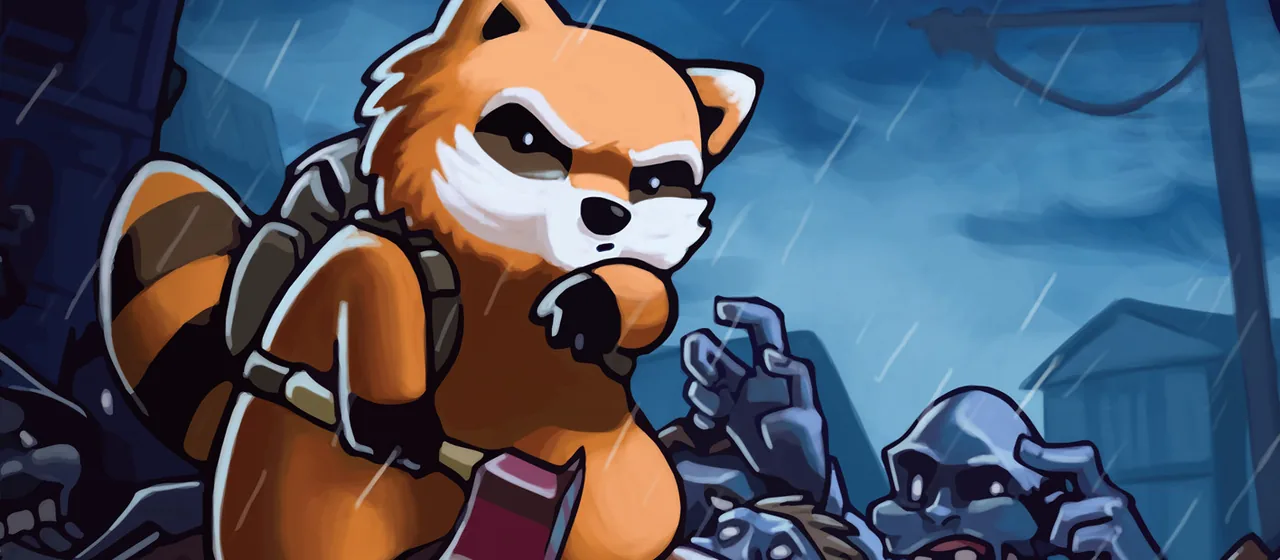
Project Zomboid Build 42.22 reached the Stable branch on 9 November 2026, as version 42.22.2. Steam updates everyone’s game to it automatically, so your players will soon be on 42.22, and they can only join a server running the same version.
What’s new in 42.22
The headline features, from The Indie Stone’s announcement:
- Ladders. You can climb the ladders placed around the map with the interact key. Empty pools and fire station roofs are no longer dead ends.
- Crowbars that open things. Right-click to force locked doors, windows, garage doors and gates. Security doors and jail cells still hold.
- Lots of smaller changes: new sound effects, a recipe to refill lighters with gasoline, map fixes, and modding improvements such as town preview videos for custom maps.
The developers also replaced the old “Unstable” branch with a Pre-Release branch. New builds now spend at least a week there before they go to Stable. If you run a server, that week is your early warning: you can test a coming update on a copy of your world before your players get it.
What it means for your server
Vanilla servers
If your server runs no mods, update and carry on. The game converts saves to the new version, and the developers say unmodded saves should work fine.
Modded servers
Mods are where updates hurt. Some mods may not work on 42.22 until their authors update them, and a broken mod can stop players joining or damage a save. You have two choices:
- Update now and test. Take a backup, update, start the server and join it yourself. If everything loads and plays normally, you’re done.
- Stay on 42.21 for a while. The developers kept a
42.21branch on Steam for players who want to wait for their mods. If you choose this, your players must switch their game to the42.21branch too (in Steam, right-click Project Zomboid, then Properties > Game Versions & Betas), or they won’t be able to join.
How to update on Wilderack
- Open your server in the panel and go to Backups. Make a backup with a label like
before 42.22. (We also make one automatically before every update, but a named one is easier to find.) - In Settings, check the game version. If it’s set to update automatically, your server moves to 42.22 on its next start. If you pinned it to an older version, change it when you’re ready.
- Restart the server, then check the Console for mod errors while it loads.
- Join and walk around for a few minutes before you tell everyone it’s ready.
If a mod breaks, restore your backup from Backups and stay on 42.21 until the mod is updated. Our Project Zomboid mods guide explains how to find which mod is causing trouble.
Tell your players which version your server runs, for example in your Discord. “Server is on 42.22” saves a dozen “why can’t I join?” messages.
Still on Build 41?
Build 41 is now the legacy branch. Moving a Build 41 world to Build 42 isn’t a simple update, because the two builds don’t share worlds and most mods. Our Build 41 vs Build 42 guide explains the choice.
The announcements
- 42.22.2 STABLE ReleasedThe Indie Stone
- Moving on Up: 42.22 Pre-ReleaseThe Indie Stone